Bring your Zotero library into Amplenote: search it and drop citations into any note, and sync each item into its own note — reference, abstract, tags, your Zotero notes, and every highlight you made in Zotero's PDF reader.
Works with your online Zotero library (zotero.org), so Zotero desktop doesn't need to be open. Your library has to be syncing to zotero.org, which it does by default once you sign in to Zotero.
linkSet up (two minutes)
Create a Zotero API key at zotero.org/settings/keys → Create new private key.
Tick Allow library access and Allow notes access.
Leave Allow write access off. The plugin only reads from Zotero, and a read-only key is the safe choice: the key shows in plain text on the plugin's settings page.
To use a group library, also give the key read access to that group (or to all groups).
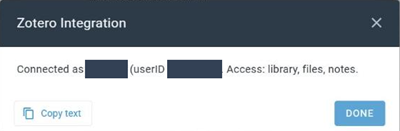
Run Zotero: Test connection (below for where to find it). The first time, it asks for your key: paste it in. The plugin checks it with Zotero, saves it, and answers with your Zotero username. If it says the key was rejected, check it was copied whole. (You can also paste the key into Settings → Plugins → Zotero Integration → Zotero API key yourself. Any action asks for it if it isn't there yet.)
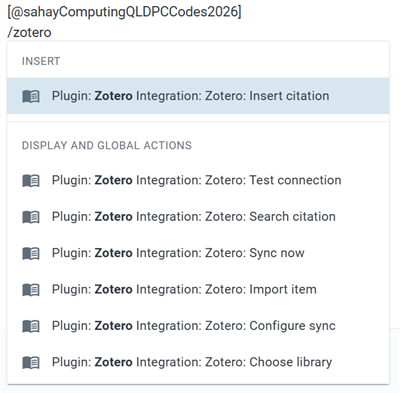
Where the actions live. On desktop, type /zotero in any note: all seven actions are listed. On a phone, /zotero lists only Insert citation; for the other six — Test connection, Search citation, Sync now, Import item, Configure sync, Choose library — tap the search icon and type zotero.
linkCite as you write
Type /zotero where you want the citation and pick Zotero: Insert citation. Search by title, author or year, pick the reference from the list, and the citation replaces what you typed — right at the cursor.
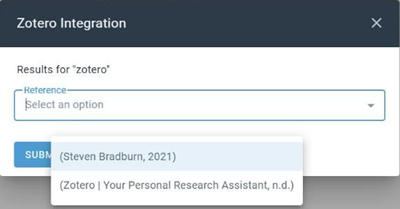
It asks which format you want each time, unless you set one:
formatted — The in-text citation, in your citation style
bibliography — The full reference entry, in your citation style
pandoc — [@kahneman2011]
latex — \cite{kahneman2011}
biblatex — \autocite{kahneman2011}
bibtex — The full BibTeX entry, @book{kahneman2011, …}
The BibTeX entry comes from Zotero itself and uses the same cite key as the other formats, so [@kahneman2011] in your text matches the entry. With Search citation it's added as a code block.
To skip the question, put one of those words in the Zotero citation format setting. The citation style is Chicago unless you set Zotero citation style to another Zotero style id, such as apa, ieee or modern-language-association. Cite keys use the Citation Key field Better BibTeX fills in, if you use it; otherwise the plugin makes one from the first author and year.
Zotero: Search citation does the same search but adds the citation to the end of the note you have open, rather than at the cursor. Use Insert citation on a phone — see "On mobile".
linkSync your library into notes
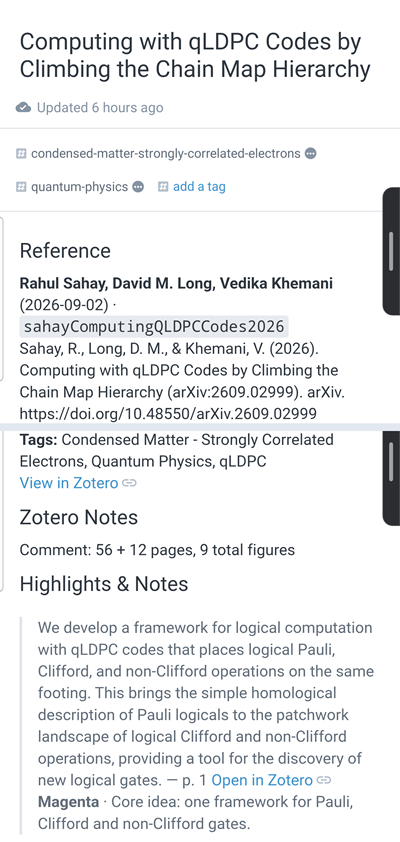
Run Zotero: Sync now. Each Zotero item becomes its own Amplenote note, named after the item and tagged with its Zotero tags, laid out in four sections:
Reference — the formatted reference, abstract, a DOI (or source) link, and links to the item and its attachments on zotero.org.
Zotero Notes — the notes you wrote on the item in Zotero.
Highlights & Notes — every highlight, underline and note from Zotero's PDF reader, with its color, page, and comment.
My Notes — yours. Write anything here.
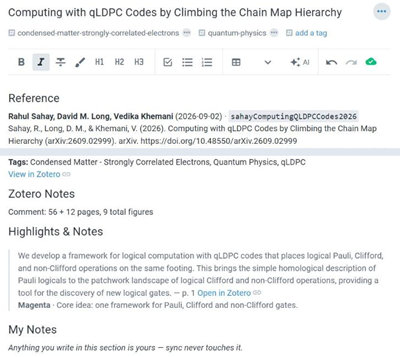
Run Sync now again whenever you want to catch up. After the first run it only fetches what changed in Zotero since last time, so it's quick. It's safe to stop and re-run.
What a re-sync changes, and what it leaves alone:
The Reference, Zotero Notes and Highlights & Notes sections are rewritten from Zotero, so edits you make inside those three are replaced next time the item changes in Zotero.
My Notes, and any section you add yourself, are never touched.
Tags are set once, when the note is first created. Tags you add or remove in Zotero later don't carry over.
Deleting an item in Zotero doesn't delete its note. The note just stops being updated.
Just one item? Run Zotero: Import item, search, and pick the reference. It gets the same note a sync would give it, without syncing anything else, and the plugin opens it. Run it again on the same item to update that note. From then on, Sync now keeps its highlights current too.
A note called Zotero Sync holds the plugin's bookkeeping. Leave it alone — editing it can make the next sync redo everything or skip items.
linkChoose what to sync
By default everything syncs. To sync only part of your library, run Zotero: Configure sync and tick the collections, tags and item types you want; leave everything unticked to go back to syncing the whole library. Changing the selection makes the next sync a full one, so newly included items come across.
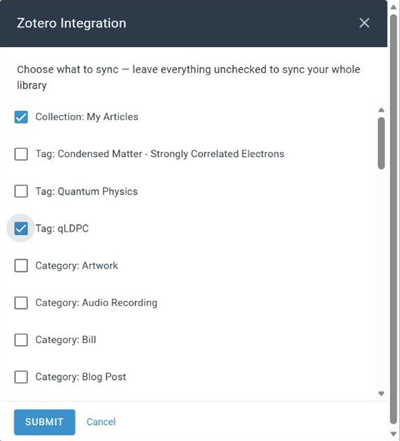
Use Configure sync rather than typing into the Zotero sync filter setting — the setting holds the result, but the dialog writes it in the form the plugin reads.
linkGroup libraries
The plugin reads My Library unless you pick a group. Run Zotero: Choose library and pick one of the groups your key can see; search, sync and import then all use it. A public group you don't belong to won't be in that list: type its number (from its zotero.org/groups address) into the Zotero library setting instead. Switch back the same way. Notes from each library stay as they are when you switch — a sync only updates the library it's set to. The first sync after a switch is a full one, and a sync selection made for the other library is cleared, since its collections and tags belong to that library.
linkShape your notes with templates (optional)
Two optional settings change what goes inside a section. Leave them blank for the built-in layout. They don't change the section headings.
Zotero reference template — the Reference section.
Zotero highlight template — each highlight.
Write the template on one line, with \n wherever you want a line break — the setting field doesn't accept the Enter key. Any {{name}} from these lists is filled in:
Reference: {{title}} {{authors}} {{date}} {{bibliography}} {{citation}} {{abstract}} {{tags}} {{citeKey}} {{itemKey}} {{zoteroLink}} {{zoteroUrl}} {{attachmentLinks}} {{doi}} {{doiLink}} {{doiUrl}} {{publication}} {{volume}} {{issue}} {{pages}} {{publisher}} {{url}} {{itemType}}
Highlight: {{text}} {{comment}} {{color}} {{page}} {{type}} {{link}} {{linkUrl}}
Two rules make templates forgiving: a line whose fields are all empty is dropped, so **Abstract:** {{abstract}} disappears for an item with no abstract. A misspelled field is left as written, so a typo shows up in the note instead of silently vanishing.
To start from something, try:
A template change shows on an item the next time sync rewrites it — when the item changes in Zotero, or on the full sync that follows a change to your sync selection. Sync doesn't rewrite items that haven't changed.
linkLinks back to Zotero
View in Zotero opens the item on zotero.org. Works everywhere, phone included.
Open in Zotero, next to each highlight, opens the PDF in Zotero desktop at that page. It needs Zotero installed on a computer. On a phone it does nothing — the Zotero Android app doesn't accept these links.
linkOn mobile
Everything works on a phone except two things:
Cite with /zotero (Insert citation). Search citation can't tell which note you have open when it's run from the phone's search, so it stops and tells you to use /zotero instead.
Open in Zotero links on highlights do nothing on a phone (above).
Sync now, Configure sync and Test connection work the same as on desktop. In the phone's plugin settings, the keyboard can cover the field you tapped; scroll the page up to see it.
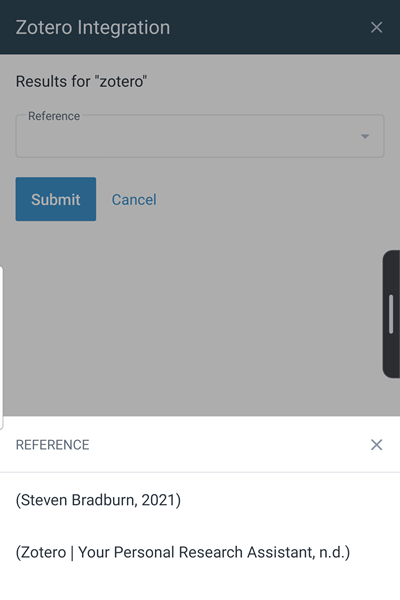
On a phone, the citation results open as a list at the bottom of the screen:
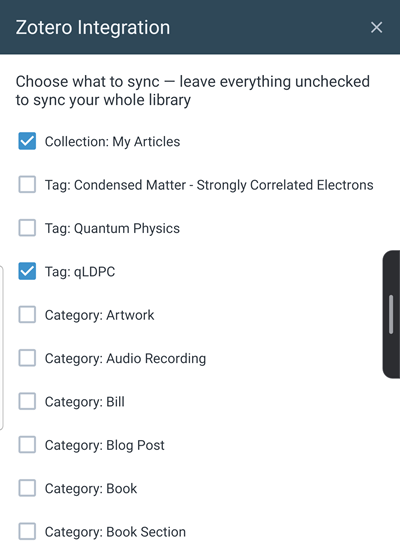
Configure sync is one long list of checkboxes; scroll to the bottom for Submit:
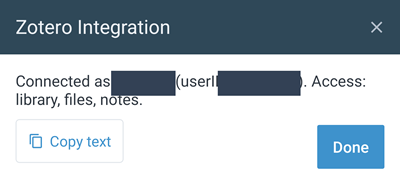
Test connection, and a synced item note, on the phone:
linkPDFs
The plugin links to your PDFs; it doesn't copy them into Amplenote. Amplenote doesn't accept PDFs as plugin attachments, and Zotero's file storage can't be read from inside a plugin. Your highlights and notes come across in full regardless — they're stored as text, separately from the file.
linkIf something goes wrong
"Is … a valid Zotero style id" — the citation style setting isn't a style Zotero knows. Clear it to go back to Chicago.
An action is missing from the list — open the plugin's own note. A red "Plugin error" badge there means Amplenote couldn't load the plugin; reinstall it.
Source code on GitHub: https://github.com/tashreefshareef/amplenote-zotero-integration