This plugin allows you to get a high-level glimpse of what's going on in your world. Here is the help page on how to install it.
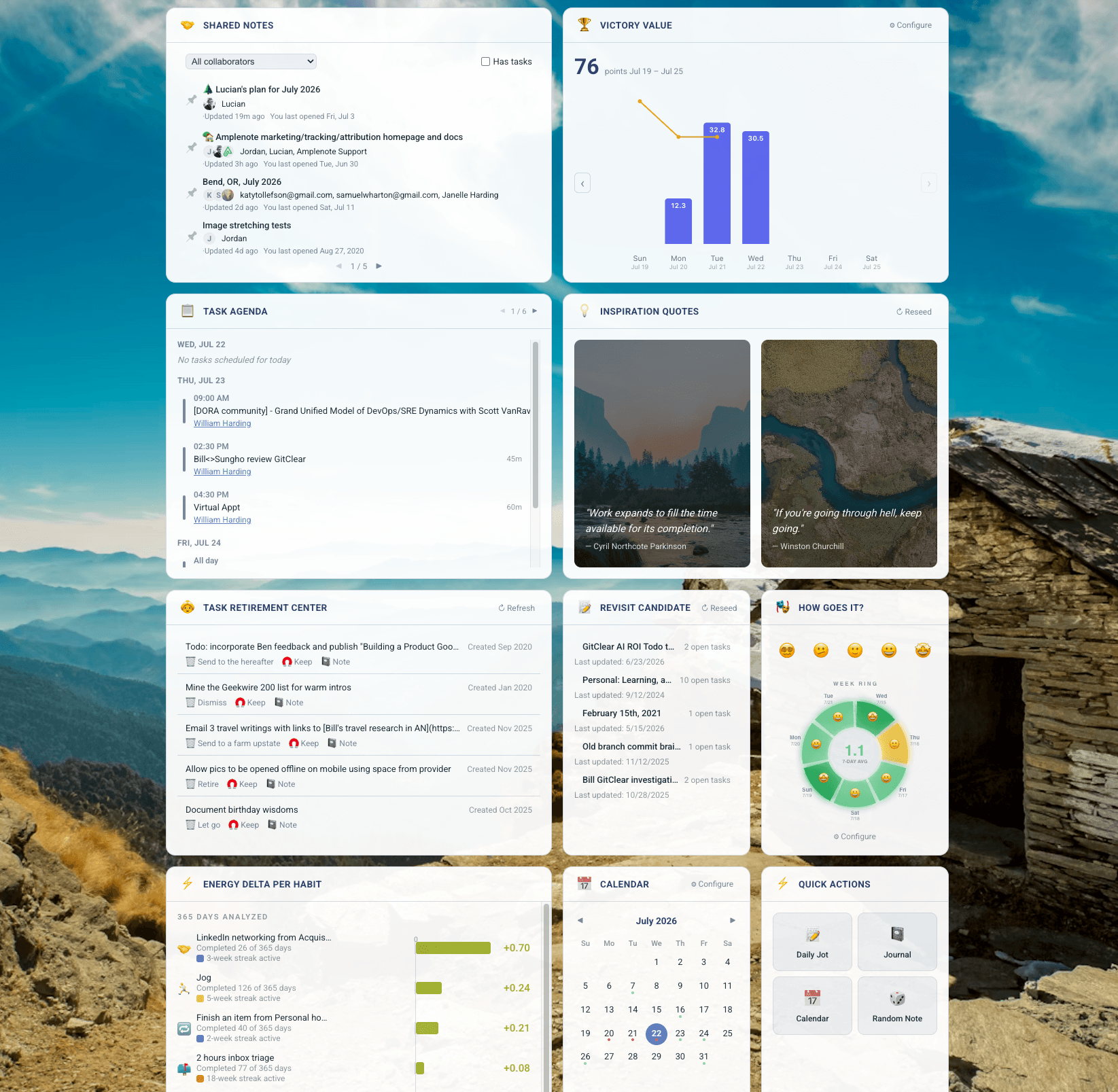
We call the different components "widgets," and these widgets can be reordered by clicking "Layout" in the top-left, or by clicking for two seconds on the title bar of a widget. You can add a background image under "Settings."
Prerequisites: Ensure you have created at least one Task Domain to use the dashboard. All notes and tasks are picked from the selected domain. Task Domain setup instructions.
Current widgets offered by the Amplenote Dashboard include:
1. Quarterly planning. The starting point for the "Dreamtask" widget, and for your day in general. The dashboard ensures that you keep what matters top-of-mind. By default, it allows the quarterly plan to be augmented with a monthly plan. If you make it 2-tall, it also has room to present your weekly plan.
2. Victory Value. How much is getting done each day, and how do you feel while doing it? Hover on a day to remember the specific tasks you finished.
3. Dreamtask. Use your preferred LLM to synthesize your quarterly/monthly/weekly plan with the tasks in your task domain. Get 2-4 tasks recommended each day, with a record of past recommendations to ensure that you get new tasks every day of the week.
4. Day Sketcher. Sketch out what to focus on today in a tab-navigable per-hour breakdown.
5. Revisit candidates. Notes with tasks that have been languishing. When you get distracted from a project, this widget helps you re-engage with long-term ideas.
6. Mood tracker. Display your daily mood ratings in either "cycle" or "wave" form. Even though nobody wants to hear about your crappy day, Amplenote Dashboard wants to help you feel "seen" by letting you leave a record of each day's highs & lows, as recommended by the experts.
7. Peak hours. Which hours were most productive during the currently selected month: both for originating ideas that ended up being high in Victory Value, or for completing said ideas?
8. Calendar. The control center for the date-based modules, allows you to see which dates have events scheduled along with specifying which date you want to see featured in the rest of the dashboard.
9. Task Agenda. What's on the docket in the coming days? Uses the Task Domain selected atop the dashboard, combined with the date selected in Calendar.
10. Inspiration quotes. Take a wild guess.
11. Quick actions. Jump to your daily jot, calendar, or a random note 🎲
Drop a comment if there's another widget you'd like to see added?