link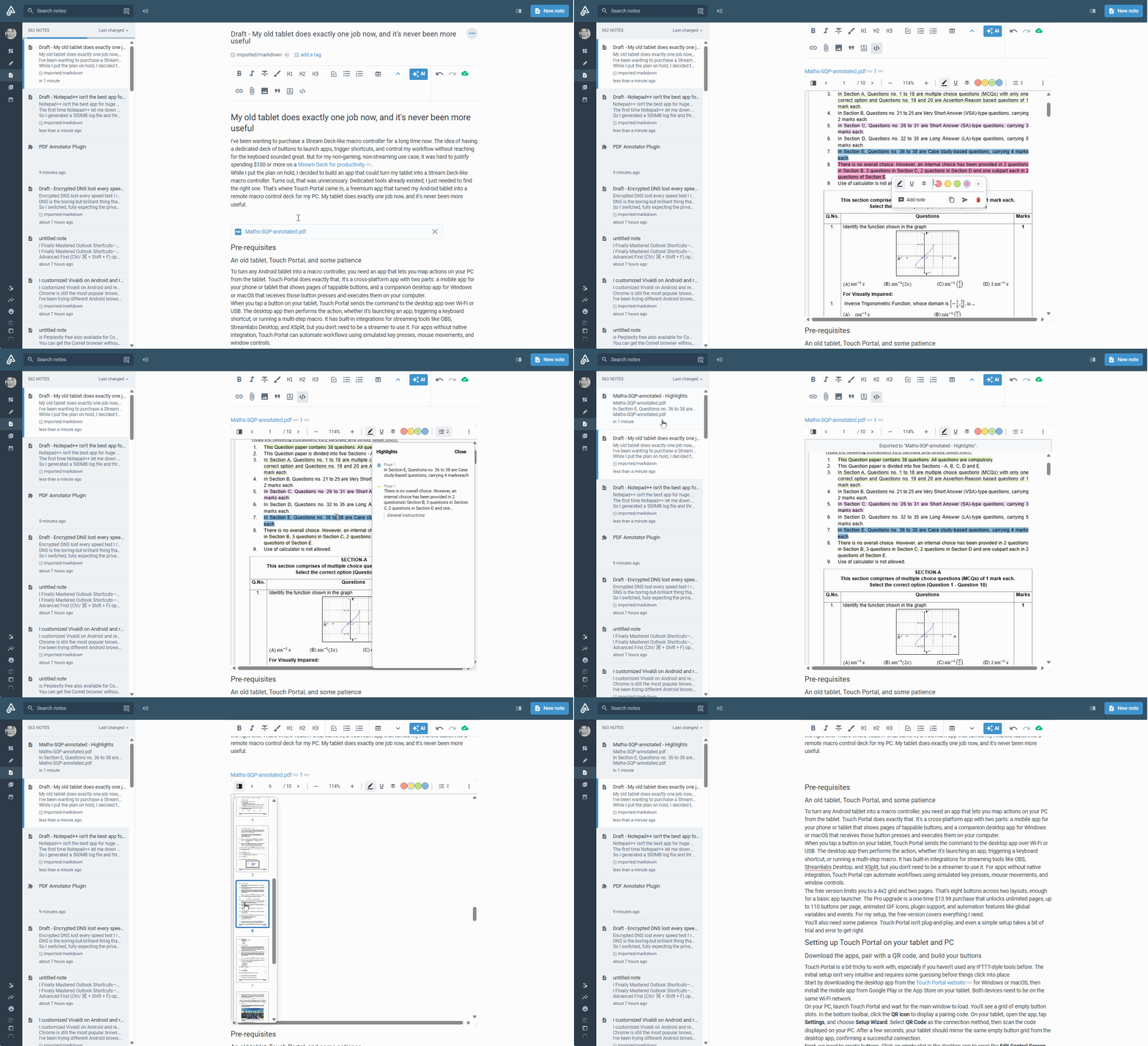
Highlight and annotate PDFs attached to your notes, in four colors, with notes on any highlight — and export it all back into Amplenote as linked, colored quotes.
linkOpen a PDF
Attach a PDF to a note, then type /annotate PDF and choose Annotate and Highlight PDFs: Annotate PDF plugin. Or run Annotate and Highlight PDFs: Annotate PDF from the note's ⋯ menu. The viewer opens beneath it.
linkHighlight and annotate
Select text in the PDF, then pick a color — either from the four circles in the toolbar, or the popover that appears right at your selection. That's it; no second step. A prompt to add a note appears immediately after.
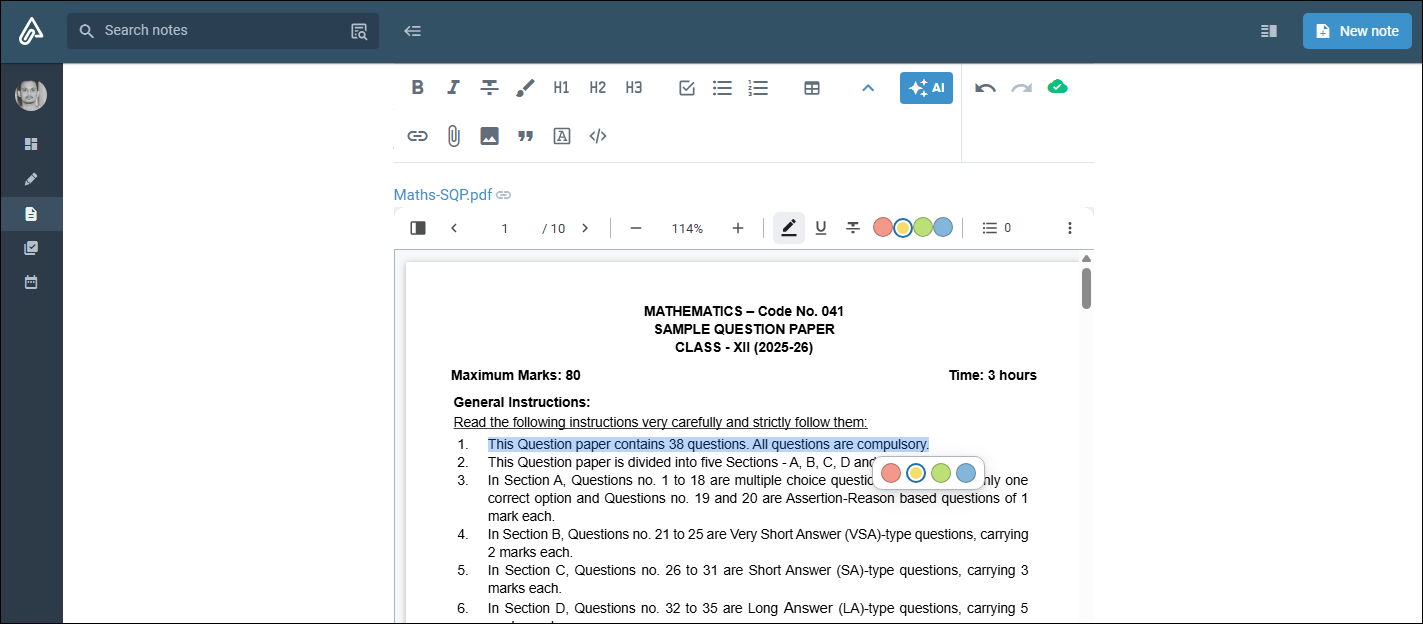
Click an existing highlight to recolor or remove it, or to add/edit/remove its note.
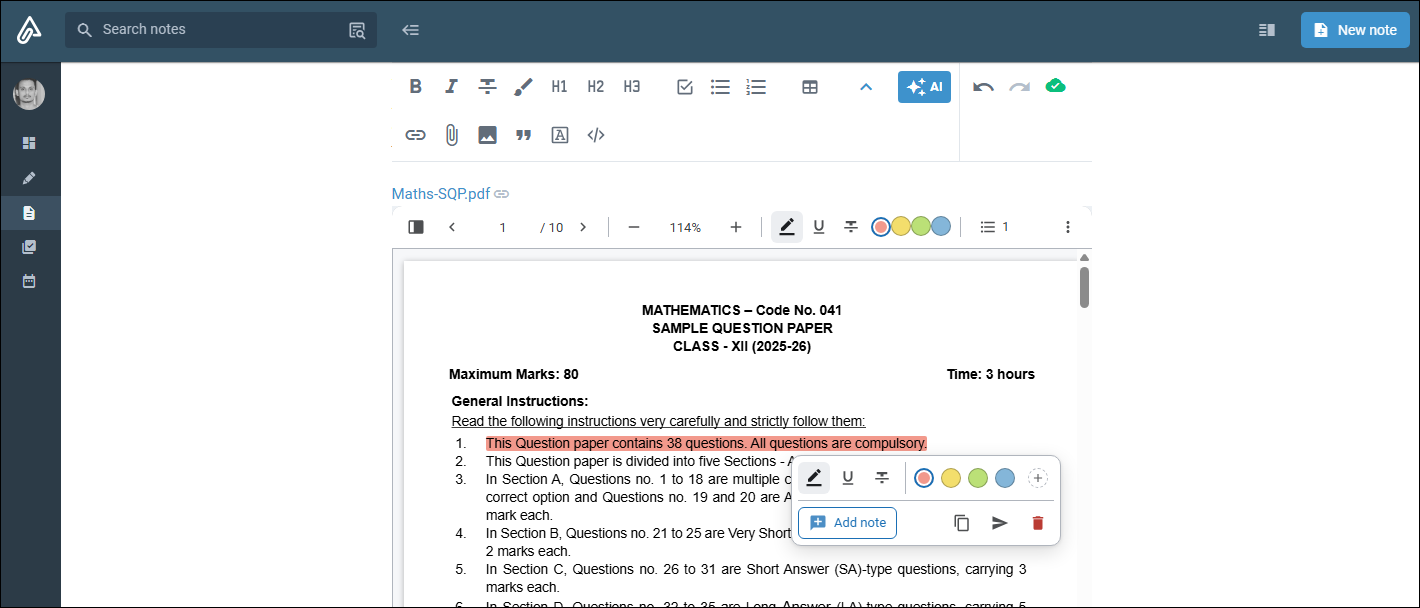
Underline and strikethrough are available too, next to the highlight shape — same colors, different mark.
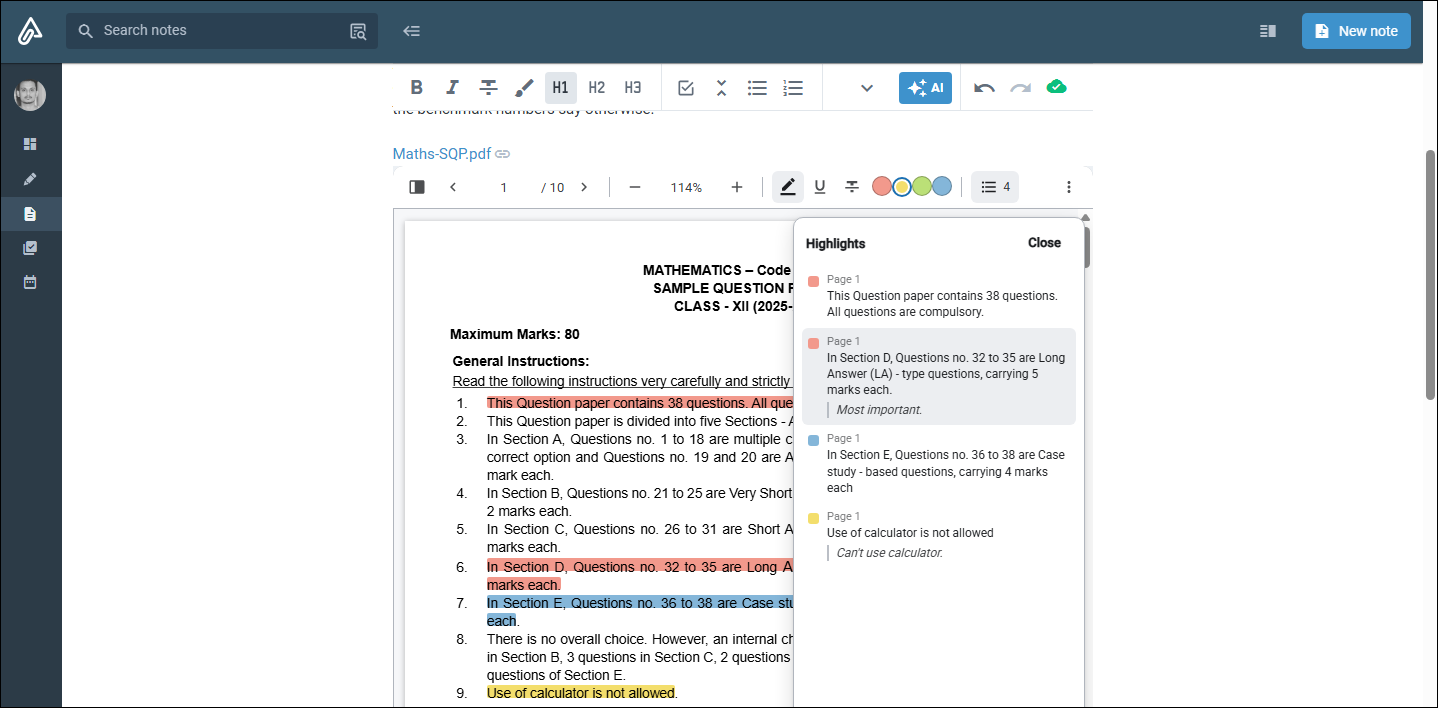
The panel below the toolbar lists every highlight and note in the PDF; click one to jump straight to it.
linkGet your highlights out
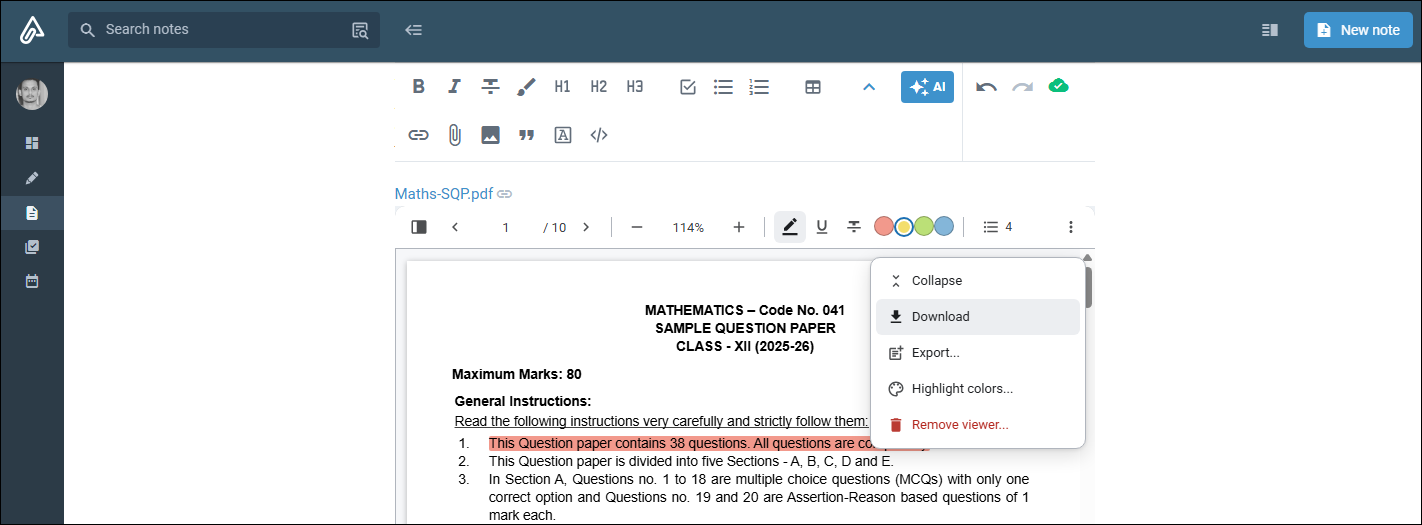
Download (⋮ menu) saves the PDF with every highlight and note baked in as real, native PDF annotations — selectable and editable in Acrobat, Preview, or any other reader, not flattened images.
Copy puts a highlight on your clipboard as a colored Amplenote quote, ready to paste anywhere.
Send to note appends that same quote to the bottom of the current note.
Export all (⋮ menu) builds a new "<PDF name> - Highlights" note containing every highlight, optionally filtered to one color.
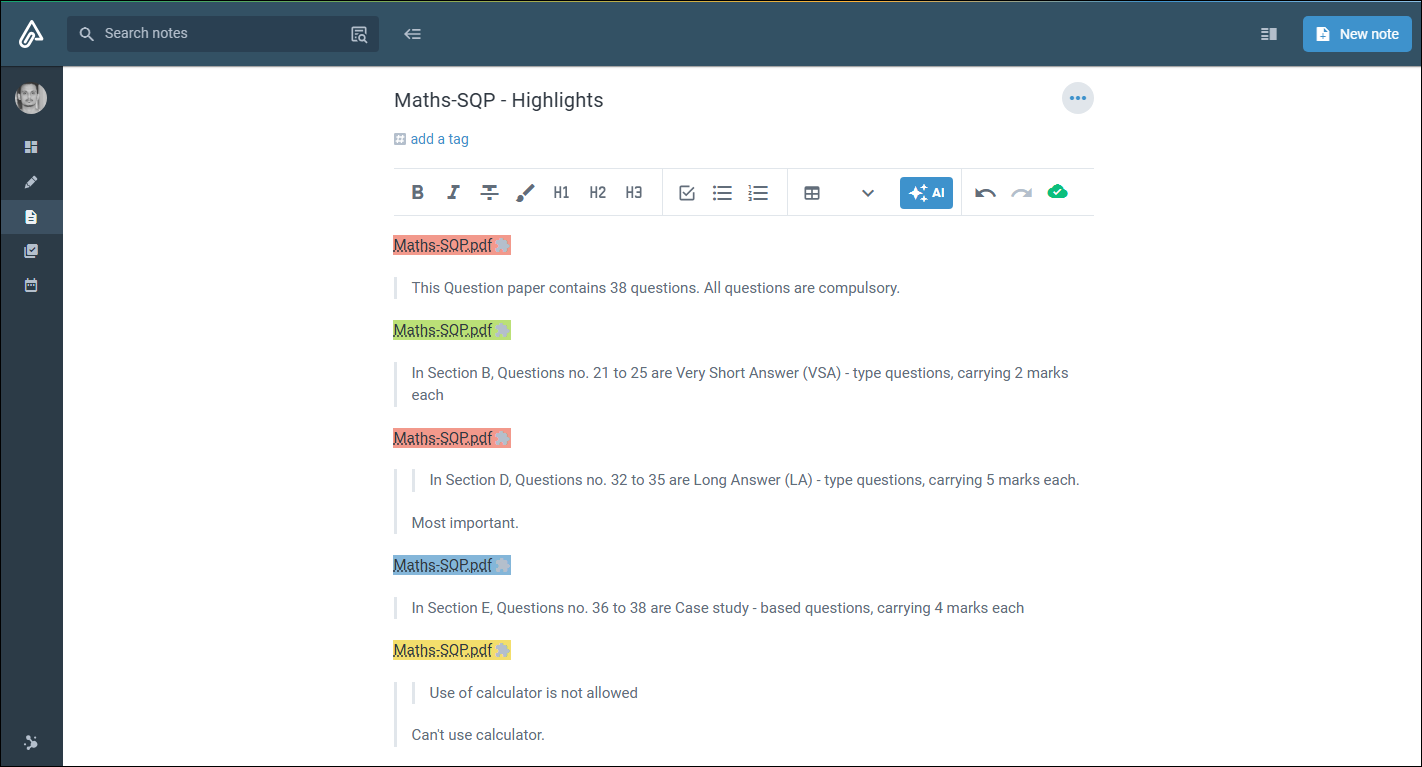
Each exported highlight is a colored link back to the PDF, the quoted text, and your note if you left one — click the small icon at the end of the link (not the text itself — that's how Amplenote links work) to jump back to the exact page and position.
What's the "PDF Annotator data" section?
Amplenote plugins have no database of their own, so every highlight and note you create is written back into the PDF's own note, under a "PDF Annotator data" heading the plugin adds automatically. It holds a block of JSON, not meant to be read — that's your highlights, keyed by which PDF they belong to so several PDFs on one note don't collide.
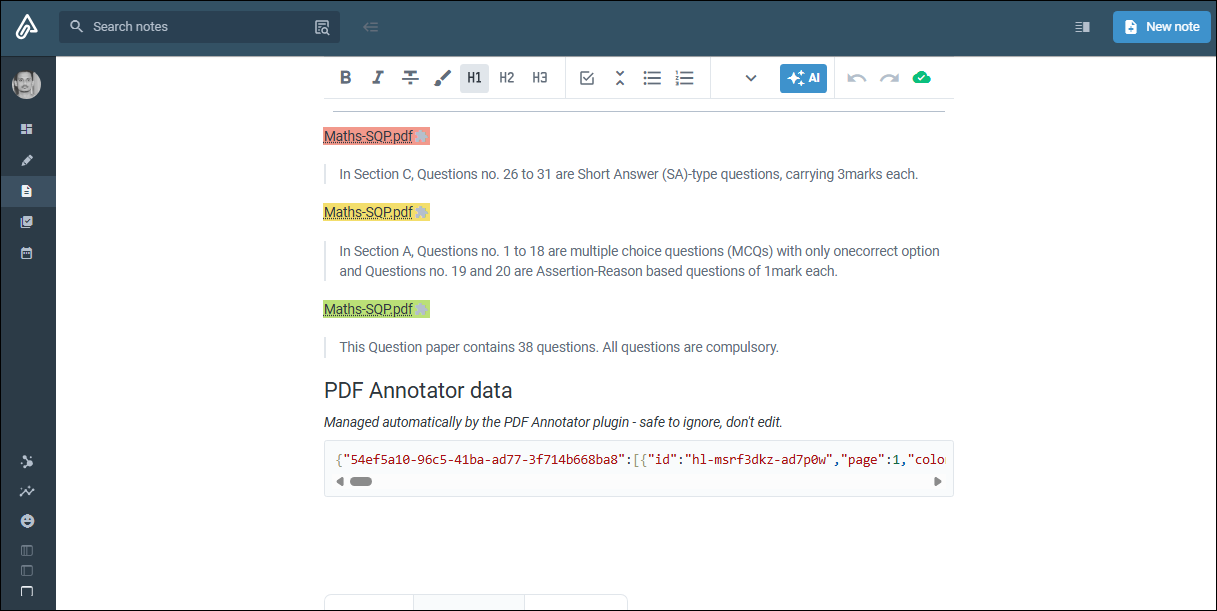
It's labeled "safe to ignore, don't edit" for a real reason: editing or deleting it resets or corrupts every highlight and note stored there the next time you save one. It always sits at the very bottom of the note — "Send to note," and every exported block are written just above it — so it stays out of the way of your own writing rather than splitting it up.
linkPick your own four colors
By default the toolbar shows coral, yellow, green and blue. To use different ones: in the viewer, ⋮ → Highlight colors…, click up to four from the full palette, Save. All eleven colors stay available for recoloring any highlight regardless of which four are in the toolbar. Takes effect the next time you open the viewer.
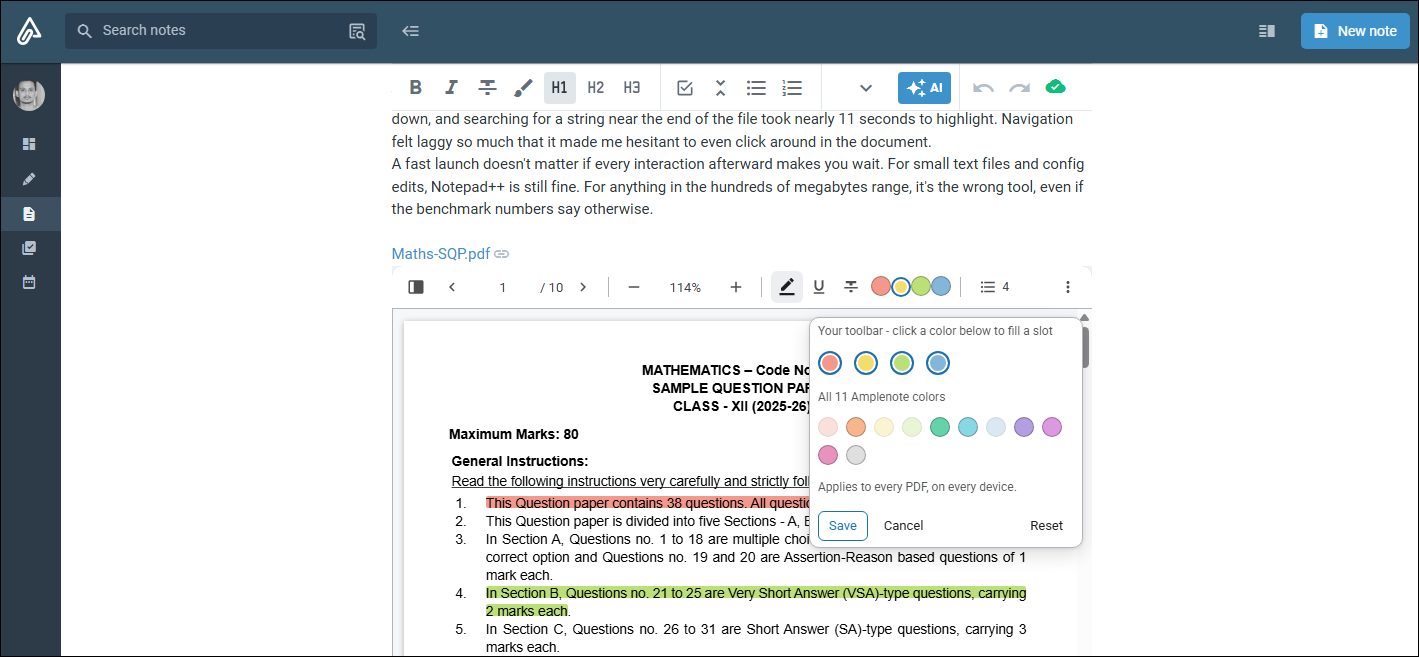
The Highlight colors picker: four slots above the full eleven-color palette
(The ⋮ menu these last two live in — Collapse, Download, Export, Highlight colors, Remove viewer )
Remove viewer (⋮ menu) takes the viewer out of the note, and deletes the highlights
and notes held inside it for that PDF — not just the box showing them. Confirmed with a
prompt first, since there's no undo after.
It leaves everything you already put into the note itself alone: blocks from Copy,
Send to note and Export are ordinary note content and stay put, and so does the
PDF name - Highlights" note. Export first if you want to keep a record.
linkOn mobile
Selecting, highlighting, notes, and export all work the same as desktop. Two things don't, both because a plugin runs inside a sandboxed frame the phone app doesn't fully delegate to: downloading the annotated PDF (the viewer will tell you if it can't, rather than fail silently), and dragging to scroll — use the ▲/▼ buttons on the right edge instead. A deep link still opens the right note and highlight; you scroll down to it yourself.
Fit the viewer to your phone. An embed can't size itself — its box comes from a single number stored in the note, the same on every device that the note is opened on. On a narrow screen, an extra button appears in the toolbar next to ⋮: Fit to this screen.
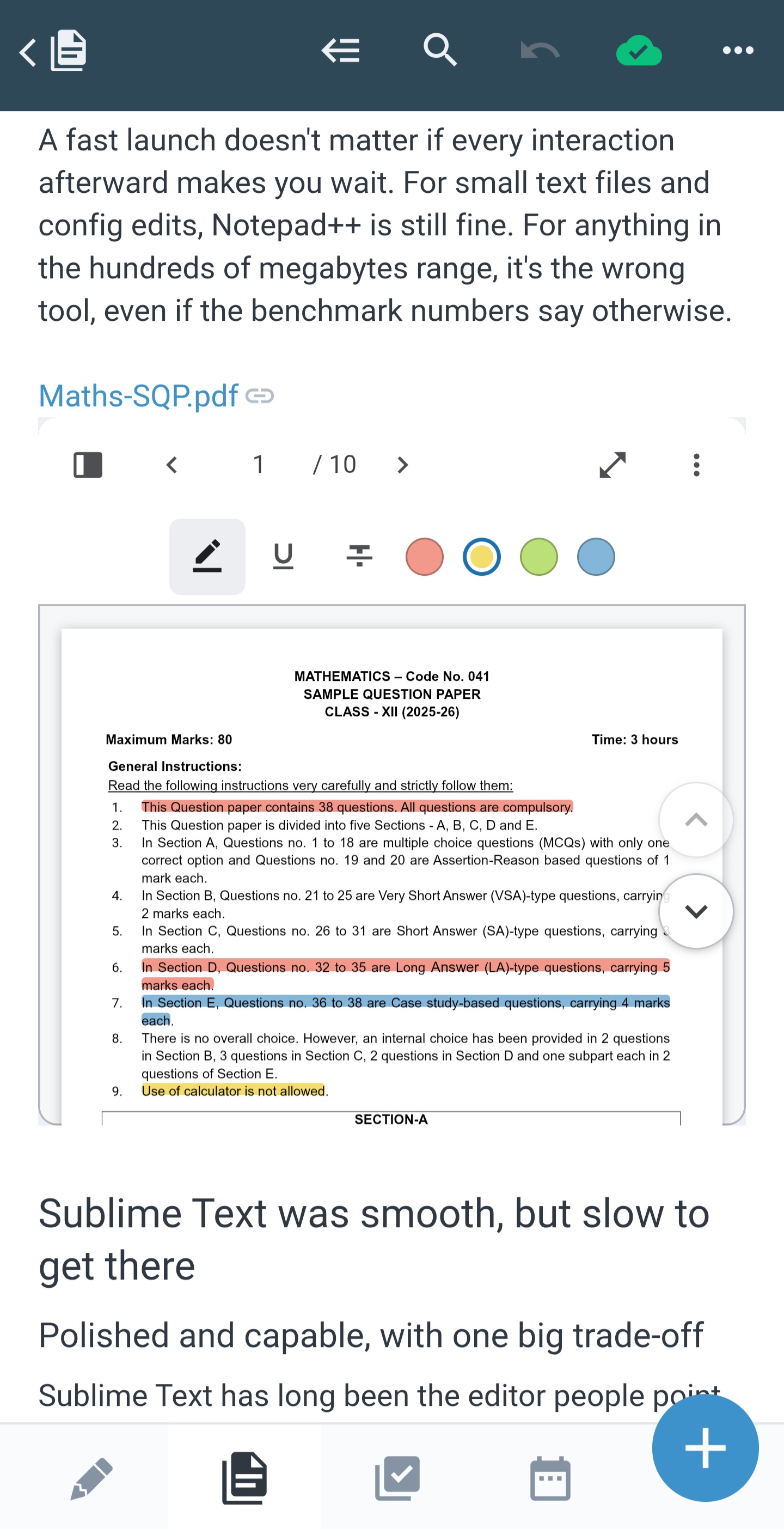
Mobile toolbar in its default state, with the Fit to this screen (expand) icon next to ⋮
Tap it once, and the box resizes to a comfortable height for that phone — the button then becomes Restore height (a compress icon) so you can put it back to the plugin's default from the same place:
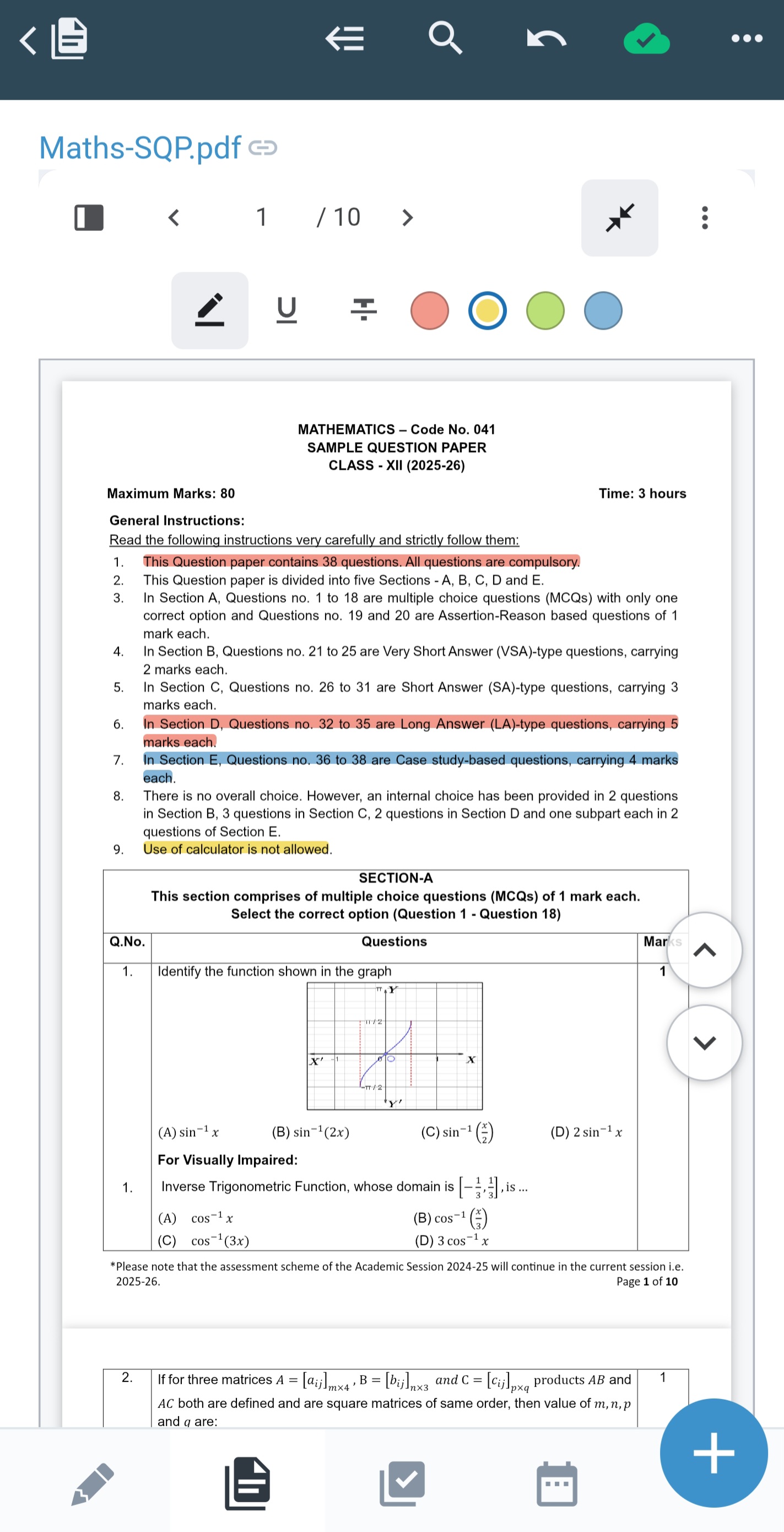
Mobile toolbar after fitting: the same button now shows Restore height, and the page renders noticeably taller
It's a one-time action, not a live/automatic fit — tap it again any time your screen changes (a different phone, a rotated tablet), and it stays exactly as you left it otherwise, so a phone and a desktop with the same note open don't keep re-adjusting each other's view. If a note was fitted to a phone and you later open it on a desktop, that toolbar button won't be there (it's phone-only) — instead the ⋮ menu on desktop grows a Restore height entry, so you can undo a phone-sized box from there too.